
Why Am I Seeing a Paywall on a Paid Subscription (and How to Fix It Instantly)
Why am I seeing a Substack Paywall if I already paid for a subscription?

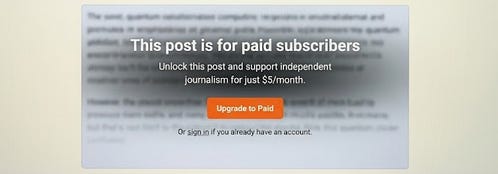
If you are seeing a paywall on a Substack newsletter you already pay for, you are not locked out, and your subscription is still active. This issue occurs because you are viewing the article inside a mobile app’s temporary browser window (like Gmail, Instagram, or X), which cannot access your saved login cookies.
When Substack cannot detect your login cookie, it treats you like an unauthenticated stranger and blocks you with a paywall.
Fortunately, this is a local technical mix-up that you can resolve right now using the three troubleshooting steps below.
How to Bypass the Substack Paywall Loop
Follow these steps in order to re-authenticate your account and restore your full reading access.
Bypass the In-App Browser
(Takes 5 seconds)
If you clicked the article link from an email app or social media feed, look at the top-right or bottom-right corner of your mobile screen. Tap the three dots or the Safari/Compass icon and select "Open in Safari" or "Open in Chrome." This forces the page to load in your device's default browser where your account details are saved.Check for Masked Apple or Google Sign-Ins
(Takes 1 minute)
If the paywall persists, you may have accidentally created a duplicate account. Check if you logged in using "Sign in with Apple" (which generates a hidden, randomized email address) or a secondary Google account instead of the exact email address where you receive your paid monthly receipts.Trigger a Clean Magic Link
(Takes 1 minute)
Go directly to the publication's main homepage (e.g., publicationname.substack.com) in a clean, standard browser window. Click Sign In, enter your payment email address manually, and wait for the login link in your inbox. Click that link only from the device you want to read on.
Why This Happens: The Science of the “In-App Browser Trap”
To prevent this from happening again, it helps to understand why Substack’s security structure triggers this issue.
1. In-App Session Isolation
When you open an email in apps like Gmail, Outlook, or Yahoo Mail and tap a link, the app doesn’t send you to your phone’s primary browser. Instead, it opens a mini-browser window inside the email app itself.
For security reasons, Apple and Android isolate these mini-browsers. They are completely sandboxed, meaning they cannot read the login cookies stored in your main Safari or Chrome apps. Because Substack relies on these browser cookies to recognize your paid status, the isolated window sees you as a non-subscriber.
2. The No Password “Magic Link” Friction
Substack does not use traditional passwords by default; it uses Magic Links sent directly to your email. If you trigger a Magic Link inside a standard browser but click it from a separate email app web-view, the authentication handshake breaks.
3. Apple ID and Google Profile Mismatches
If you originally subscribed to a newsletter using a specific email (e.g., yourname@gmail.com), but later clicked “Sign in with Apple” on your phone, Apple’s privacy system creates a proxy email identity. Substack registers this proxy as a completely new, free-tier user profile, hiding your actual paid account.
The Golden Rule for Substack Access: If you find the article is blocked after you clicked the email link - you can then instead, just type the publication's web address directly into your preferred web browser or open the dedicated Substack app, where your session remains permanently authenticated.
Paul Arino
Substack Growth Tips | How To Grow
Are you Not Receiving Your Substack Emails? Here’s A Step-by-Step Fix for the “Missing Newsletter” Problem.
For anyone still running into this issue on a mobile device, it helps to understand why the Substack login loop happens. When you're stuck in an in-app browser paywall, it's usually because apps like Gmail, Facebook, or X (Twitter) use isolated sandboxes that intentionally isolate your browsing session. This completely blocks Substack from reading your active session cookies.
Here is a quick breakdown of common cases and fixes to ensure you don't get locked out of your paid newsletter access:
- The 'Sign in with Apple' Trap: If you chose the private Apple ID login option when setting up your subscription, Apple automatically creates a proxy email (like @privaterelay.appleid .com). If you later try to type in your actual personal email to log in, Substack reads it as a brand new, free account - hence the unexpected paywall. Always use the explicit "Sign in with Apple" button if that's how you initially registered.
- Clearing Cookie Cache: On standard browsers like Chrome or Safari, a corrupted cache can trick the site into thinking you aren't authenticated. Go to your browser settings, clear cookies specifically for substack.com, and request a brand-new Substack magic link to re-verify your device.
- Using the Native Substack App: If you read frequently on your phone, downloading the official app bypasses the browser cookie issues entirely, as your device token keeps you permanently logged into your premium subscriptions.
If you've checked your bank statements and confirmed the subscription fee went through, you are definitely dealing with one of these cookie or email matching errors rather than an account cancellation!